Compute Optimizer provides actionable insights to help you manage compute spend and implement automated compute controls. This enables you to identify inefficient areas, receive clear recommendations for optimization, and ultimately achieve potential compute savings, improved query efficiency, and a more streamlined New Relic experience.
This tool is designed for two types of users:
- Practitioners and dashboard creators: Users who create dashboards and alert conditions and want to ensure they are optimized and not wasteful
- Admins: Those responsible for maintaining New Relic costs within their company and ensuring compute usage doesn't exceed budget limits
Importante
Compute Optimizer is available to customers on Legacy Compute (CCU) or Core Compute plans only. It is not available to customers on Data + User + Advanced Compute plans.
Access Compute Optimizer
You'll find the Compute Optimizer in the Administration panel within New Relic.
- Log in to New Relic.
- Click your user name, then select Administration.
- Click Compute Optimizer to access the dashboard.
Compute Optimizer
Compute Optimizer includes Alert Conditions and Dashboards views, allowing you to focus on specific product capabilities. Both views share common functionality:
- Time picker: Filter data based on specific time periods
- Refresh recommendations: Update the recommendations with the latest data
- Export report: Download the recommendations for offline analysis
Each view displays different metrics related to compute usage and potential savings (see individual sections below).
Insights are dynamic and filtered by your time picker settings, allowing you to analyze specific time periods.
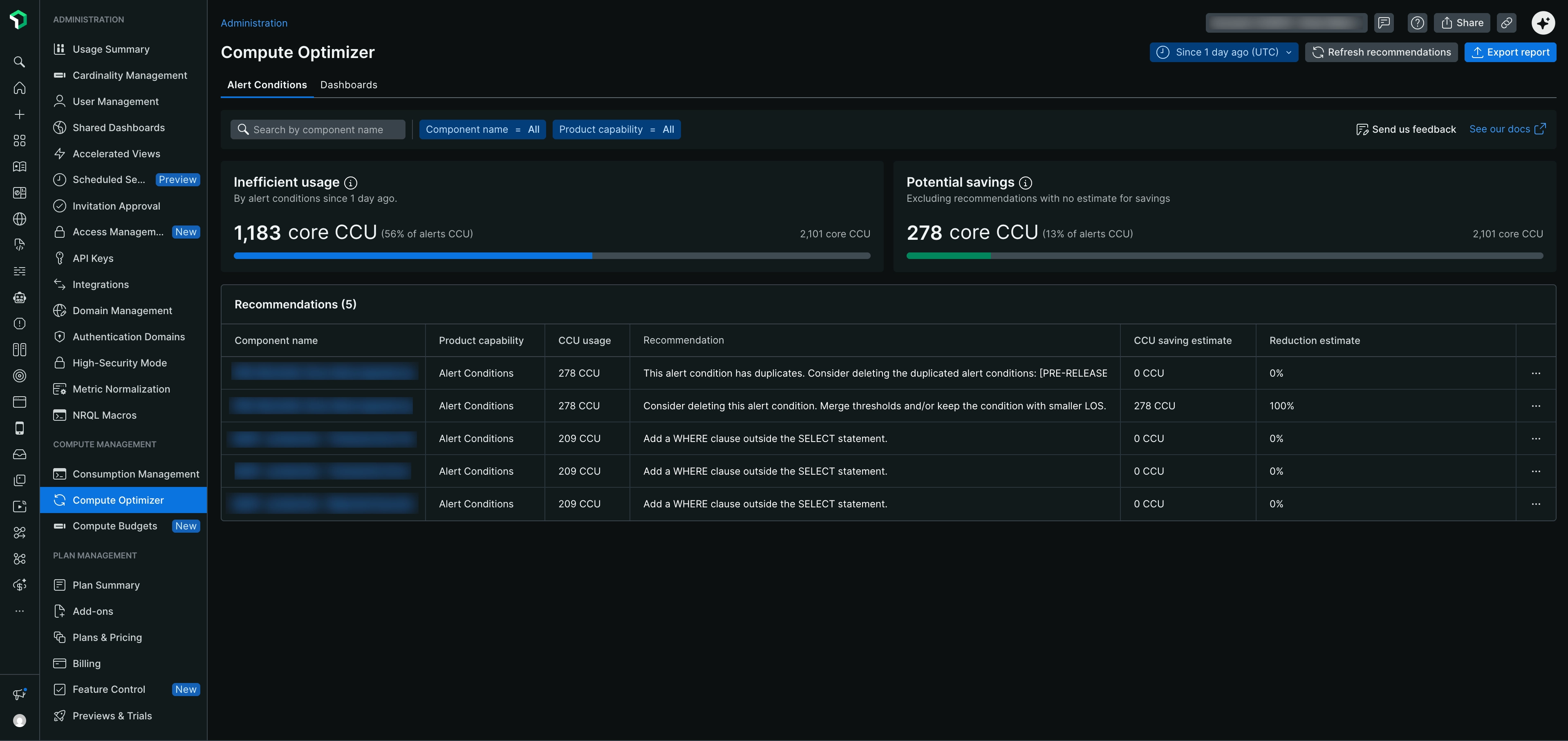
Alert Conditions help you identify and optimize inefficient alert conditions that are consuming excessive compute resources.
Dashboard metrics
- Inefficient usage: Shows the total core CCU consumed by alert conditions that have been flagged as inefficient, expressed as a percentage of total alerts CCU
- Potential savings: Shows the estimated core CCU savings you can achieve, expressed as a percentage of total alerts CCU (excludes recommendations without savings estimates)
Search and filter
Use the search bar to find specific alert conditions by name. You can also filter recommendations by:
- Component name: Filter by all available alert conditions or specific ones
- Product capability: Focus on Alert Conditions specifically
Recommendations table
The recommendations table breaks down the identified optimization opportunities for alert conditions:
- Component name: Identifies the specific alert condition that has an optimization opportunity
- Product capability: Displays "Alert Conditions" for all entries
- CCU usage: Shows the current compute consumption (measured in core CCU) for each alert condition
- Recommendation: Offers actionable insights for optimizing your compute. Common recommendations include:
- "Add a
WHEREclause outside theSELECTstatement" - "Consider deleting this alert condition. Merge thresholds and/or keep the condition with smaller LOS"
- "This alert condition has duplicates. Consider deleting the duplicated alert conditions"
- "Add a
- CCU saving estimate: Quantifies the potential compute reduction (in core CCU) for each individual recommendation
- Reduction estimate: Shows the percentage of compute that could be saved (for example, "100%", "0%")
Taking action
The action menu (three dots) for each recommendation offers additional options, including access to optimized queries when applicable, making it easy to implement the suggested changes directly.
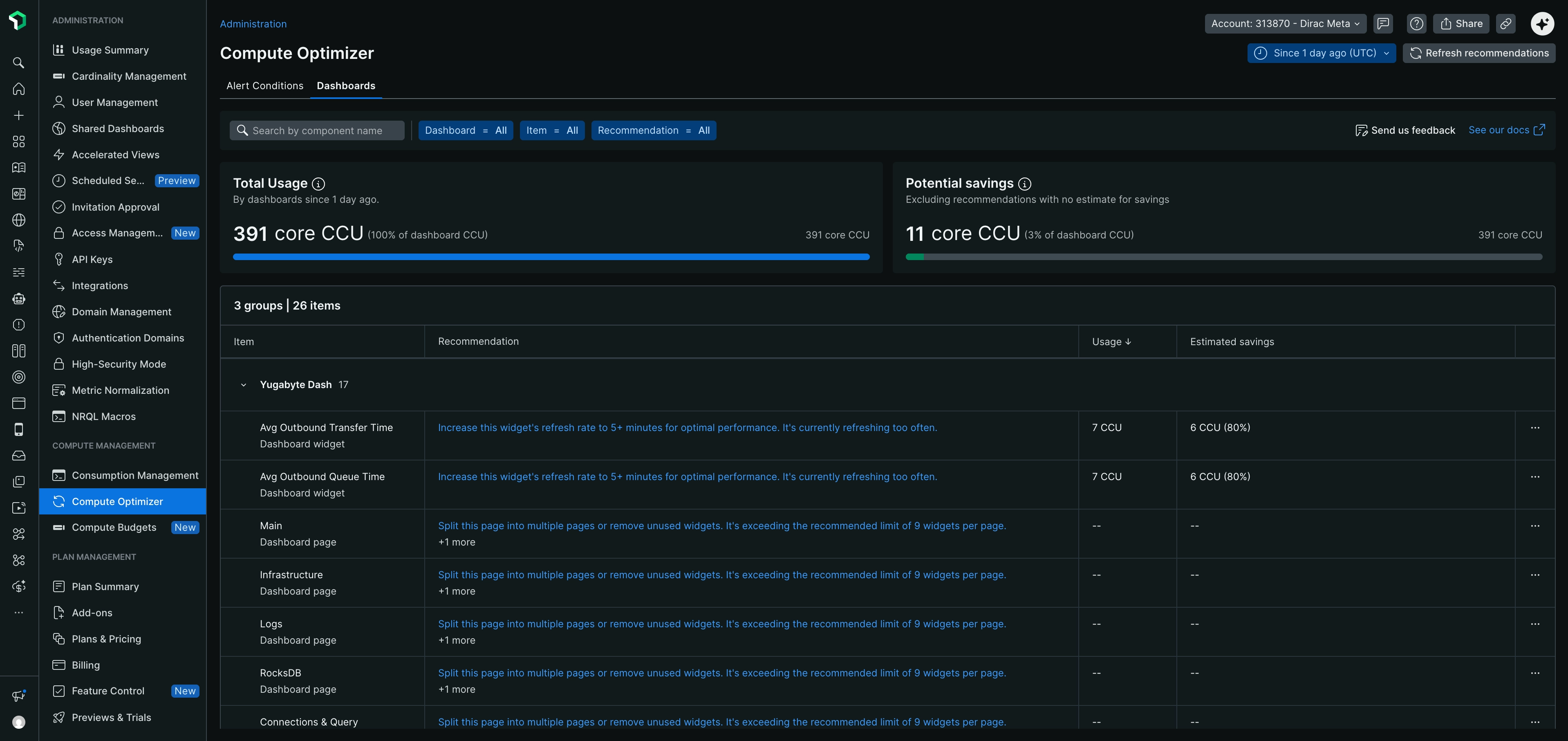
Dashboards help you identify and optimize dashboard widgets and pages that are consuming excessive compute resources or need performance improvements.
Dashboard metrics
- Total Usage: Shows the total core CCU consumed by all dashboards, expressed as a percentage of total dashboard CCU
- Potential savings: Shows the estimated core CCU savings you can achieve, expressed as a percentage of total dashboard CCU (excludes recommendations without savings estimates)
Search and filter
Use the search bar to find specific dashboards, widgets, or pages by name. You can also filter recommendations by:
- Dashboard: Filter by all dashboards or specific ones
- Item: Filter by all items (widgets and pages) or specific ones
- Recommendation: Filter by all recommendations or specific recommendation types
Grouped view
Dashboards organize recommendations by dashboard, showing the total number of groups and items (for example, "3 groups | 26 items"). Within one dashboard, there can be multiple recommendations. Each dashboard can be expanded to view individual recommendations at three levels:
- Dashboard level: Recommendations that apply to the entire dashboard (for example, reducing the time range for the whole dashboard)
- Page level: Recommendations for specific pages within the dashboard
- Widget level: Recommendations for specific widgets within the dashboard (for example, using WHERE filters more effectively in a specific widget)
Recommendations table
The recommendations table shows optimization opportunities organized by item:
- Item: Identifies the specific dashboard, page, or widget that has an optimization opportunity. Items are grouped under their parent dashboard name.
- Recommendation: Offers actionable insights for optimizing your dashboards. Recommendations vary based on the specific inefficiencies detected and may include multiple suggestions per dashboard.
- Usage: Shows the current compute consumption (measured in core CCU) for each item, with sorting capability
- Estimated savings: Quantifies the potential core CCU savings and percentage reduction for each recommendation
Importante
A dash (--) in the Usage and Estimated savings columns indicates that the exact savings amount cannot be calculated. However, implementing these recommendations will still reduce compute consumption.
Viewing recommendation details
When you click any recommendation, a side panel opens with:
- The detailed recommendation text
- A link to the affected dashboard
- The original query and an optimized query (when applicable), allowing you to copy and implement the optimized version
Use the optimized query to update your dashboard and improve performance.