A budget sets a spending limit for your account over one to twelve months. You can track actual spending against this limit to control cloud costs.
Create a budget
Go to one.newrelic.com > All Capabilities > Cloud Cost Intelligence > Budgets.
Click + Create a budget on the budgets page.
Enter a name for your budget.
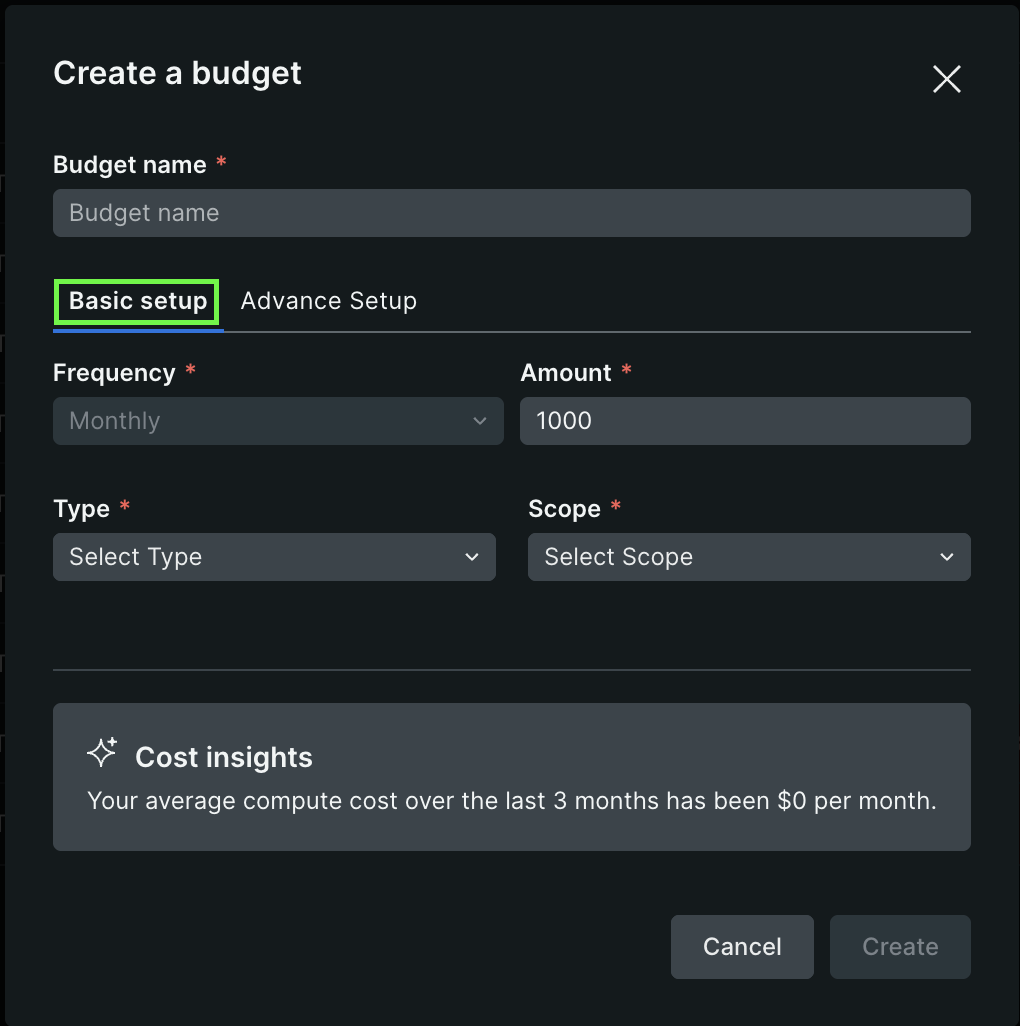
Choose your setup type:
- Basic Setup: Quick budget creation with essential fields (budget amount, type, scope, alerts)
- Advanced Setup: Additional options including custom time duration and multiple scope configurations
Field name
Description
Budget Amount
Enter the budget amount. This is the spending limit you want to set for the budget period.
Type
Select the cost category to track from the dropdown. Options include account ID, cell name, cell type, engineering group, owning team, region, service type, and more.
Scope
Select which specific accounts, resources, or services this budget applies to from the dropdown menu.
Set up alerts
Toggle to enable alerts that help you stay on top of usage and meet your budget goals. When enabled, you can:
- Select an alert threshold percentage (100%, 80%, 70%, or 60% of budget)
- Choose to use an existing policy or create a new policy
- Select or create an alert policy to receive notifications
ヒント
Cost Intelligence gives the average compute cost over the last 3 months. This is calculated based on the actual spend in the past 90 days.
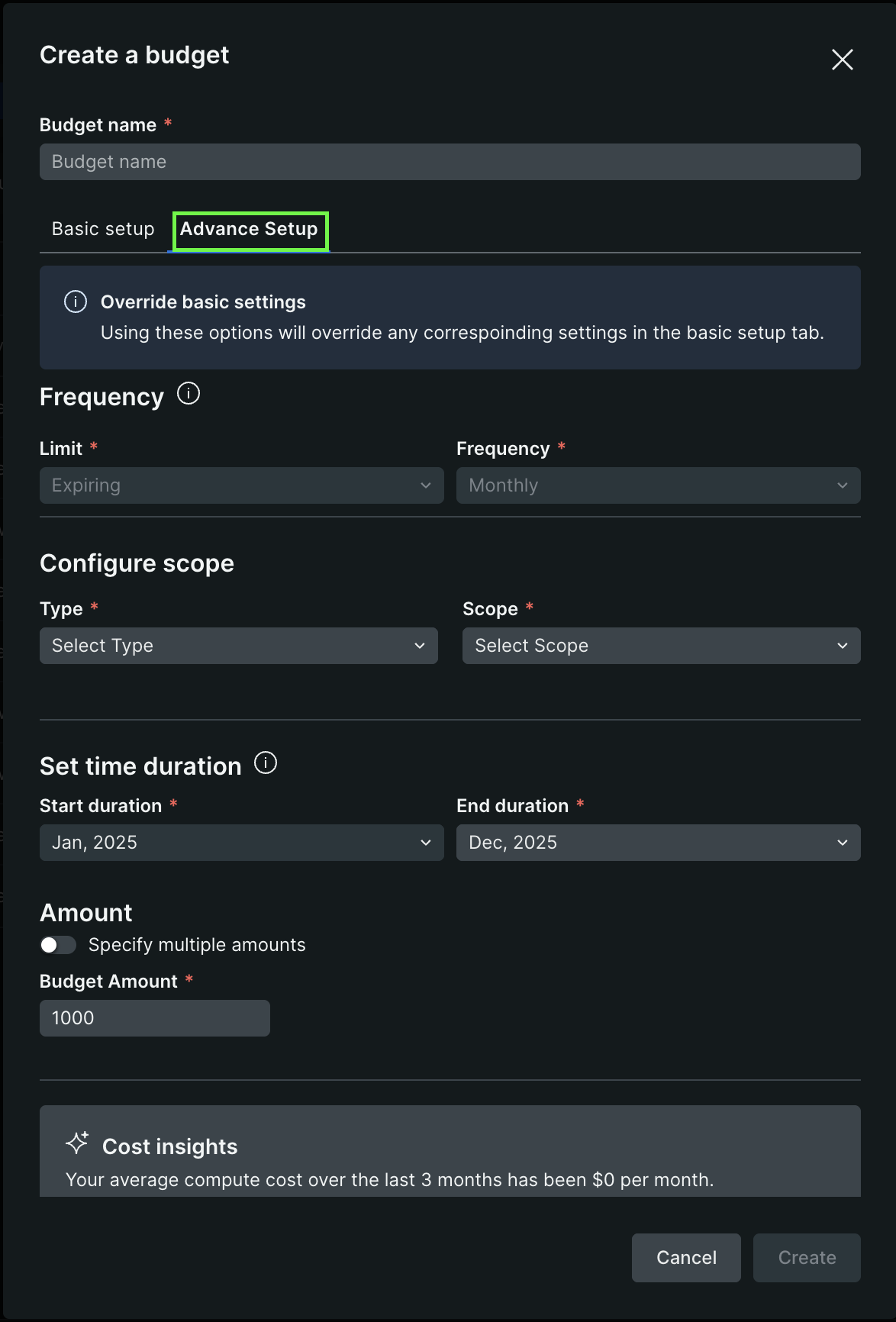
Advanced Setup provides more options to customize scope, time duration, and budget amounts.
重要
If you configure advanced settings, they'll override the basic options.
Configure your scope
Field name
Description
Type
Select the cost category to track from the dropdown. Options include account ID, cell name, cell type, engineering group, owning team, region, service type, and more.
Scope
Select which specific accounts, resources, or services this budget applies to from the dropdown.
Add multiple scopes
Use the + button to add multiple type and scope combinations to track costs across different categories in a single budget.
Set time duration
Field name
Description
Start duration
Select the start month and year for the budget period from the dropdown (for example, Mar, 2026).
End duration
Select the end month and year for the budget period from the dropdown (for example, Dec, 2026). The system displays the maximum budget duration based on your selection (for example, "Maximum budget duration: 10 months").
Amount
Field name
Description
Specify multiple amounts
Enable this toggle to set different budget amounts for each month in the duration. When disabled, enter a single budget amount that applies to the entire period.
Budget Amount
Enter the budget amounts. If Specify multiple amounts is enabled, you can enter different amounts for each month.
Set up alerts
Field name
Description
Set up alerts
Enable this toggle to configure alerts that help you stay on top of usage and meet your budget goals. Alerts will help you monitor spending and receive notifications when budget thresholds are reached.
Review the final budget setup, then click Create.
Monitor budgets
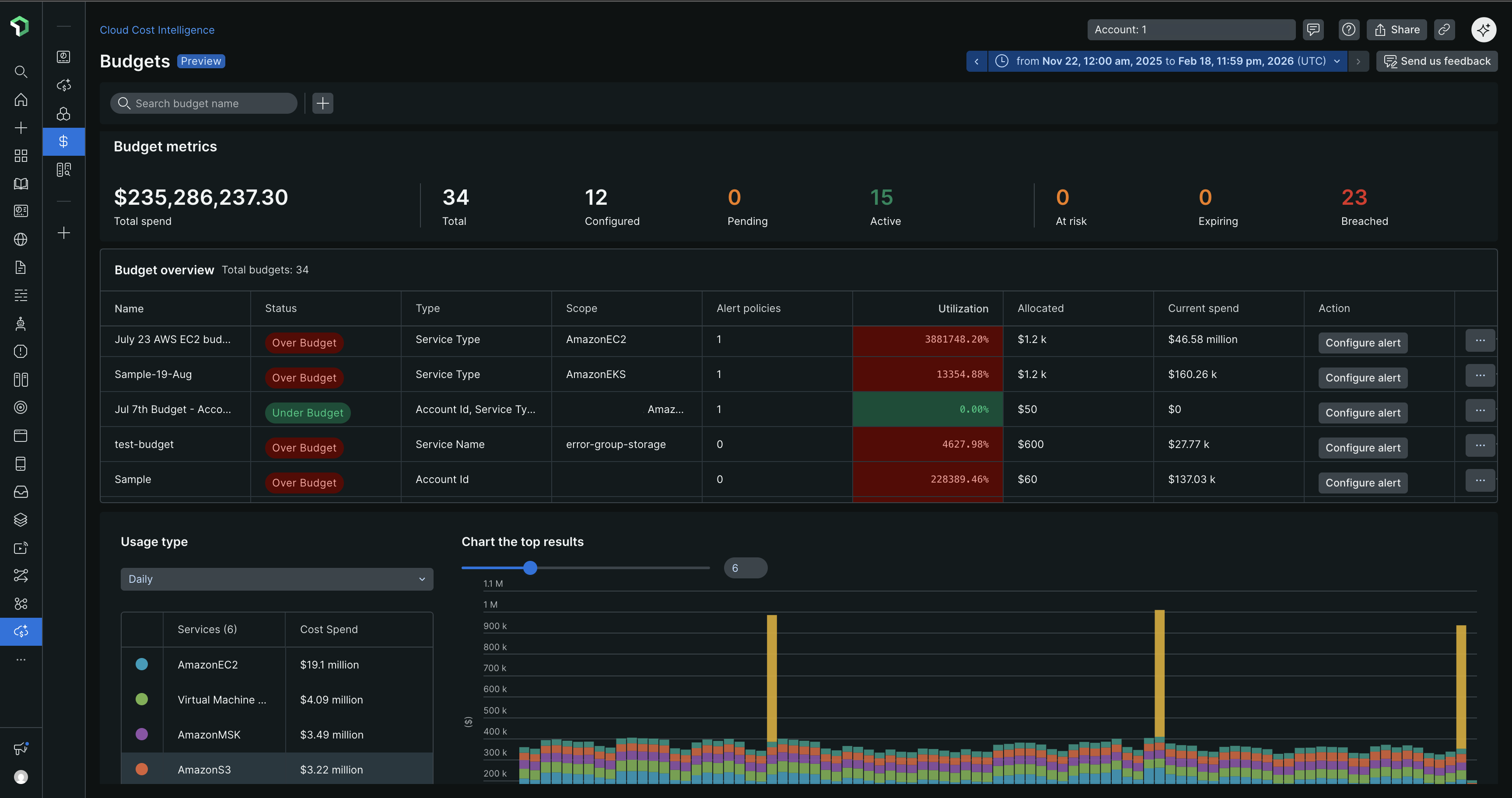
After creating budgets, the budgets page displays key metrics and an overview table to track spending.
Budget summary
The Summary section at the top of the budgets page displays key metrics:
- Total: Total number of budgets created
- Alerts Configured: Number of budgets with alert policies set up
- Under Budget: Number of budgets with spending below the threshold
- At Risk: Number of budgets approaching their spending limit
- Breached: Number of budgets that have exceeded their spending limit
Budget overview
The Overview section includes filter options to view budgets by status:
- Under Budget (< 50%): Budgets with spending below 50% of the allocated amount
- At Risk (50% - 100%): Budgets with spending between 50% and 100% of the allocated amount
- Breached (> 100%): Budgets that have exceeded their allocated amount
The budget overview table includes:
Column | Description |
|---|---|
Name | Budget identifier |
Type | Cost category being tracked |
Scope | Accounts or resources covered |
Alert policies | Number of configured alerts |
Allocated | Total budget amount allocated for the specified period |
Current spend | Actual spending to date within the budget period |
Utilization | Percentage of budget consumed, color-coded by status (green for under budget, red for breached) |
Action | Options to set up alerts or manage alerts |
ヒント
Monitor budgets with At Risk or Breached status regularly to prevent unexpected costs. Use the filter options in the Overview section to quickly identify budgets that need attention.
View budget details
Click the ellipsis icon (...) next to a budget in the overview table and select Show details to view detailed information about your budget.
Configuration details
The left panel displays your budget configuration:
- Name: The budget identifier
- Created by: User who created the budget
- Budget Allocation: Total amount allocated for the budget period
- Budget Consumption: Current spending amount
- Time range: Start and end dates for the budget period
- Type: Cost category being tracked
- Scope: Accounts or resources covered (for example, Account Id)
Budget breakdown table
The main section displays a table with monthly budget details:
- Start date: Beginning of each month in the budget period
- End date: End of each month in the budget period
- Budget Allocation: Amount allocated for that month
- Budget Consumption: Actual spending for that month
Budget allocation chart
Below the table, a visualization displays:
- Monthly budget allocations as bar charts
- Time-based view showing spending patterns across the budget period
- Color-coded bars to track budget consumption trends
Alert Policies
The Alert Policies section at the bottom shows:
Set up alerts toggle to enable alerts that help you stay on top of usage and meet your budget goals. When enabled, you can:
- Select an alert threshold percentage (100%, 80%, 70%, or 60% of budget)
- Choose to use an existing policy or create a new policy
- Select or create an alert policy to receive notifications
ヒント
Use the monthly breakdown table to identify specific months where spending patterns deviate from your budget. This helps you adjust spending or reallocate budget amounts before exceeding your limits.